Want to enhance the user experience on your Shopify store? Site speed is important to be taken care of. Apart from several ways, image lazy load is one of the best ways to increase the site speed and overall performance.
Lazy loading is the site performance-enhancing technique used to slowly load images and other media files only when a user scrolls down the page except for initial page loading. Lazy load also comes with another name called defer offscreen and hidden images.
Among plenty of ways, Lazy loading with blurred image effects is one of the most effective ways and highly preferable on Shopify. There is almost a 10% to 30% reduction in the page weight that can be seen after implementation.
Now, let’s understand what makes lazy loading, a highly effective tool to speed up Shopify speed and performance.
Importance of Lazy Loading Shopify Images
Shopify is a well-known CMS designed for eCommerce sites. Since eCommerce websites are usually much heavier than others, optimization remains in the greatest need. Lazy loading is one such way to optimize Shopify sites for speed.
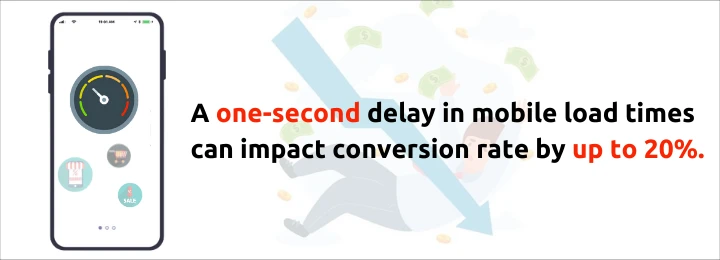
Lazy loading increases browser response to fast loading pages since it’s not loading all the images right away. Thus, lazy loaded images don’t contribute to the initial page load and show many great benefits such as:
- Make site lighter and faster
- Increases google rankings and conversions
- Improve mobile load time
- Reduce server requests
- Decrease weight on the web page
Lazy load works through the replacement of the src attribute with a data-src placeholder. This makes the image not load in the standard HTML sequence. With this, javascript is then used to grab that placeholder URL and update the element’s src attribute. As a result, the site only loads an image when it comes into view.
So, you can see a significant load time reduction while optimizing your Shopify by lazy loading.
Now, it’s time to know how it can be done – how to implement lazy loading to your Shopify store.
How to Lazy Load Shopify Images & Themes
Images and themes are a huge part of Shopify stores. Compelling themes and product images build customers’ trust and ensure a better user experience.
So, whether you are using the fastest Shopify themes or higher quality pictures, it is crucial to make them lazy load. Here is how to do it:
- Add lazysizes.js library to your theme assets folder and include it in the theme.liquid
- Locate the image tags in your theme files
- Update those image tags by replacing src with data-source and adding the “lazyload” class
- Add CSS styling to get animation effects
You can check out thorough instructions on using lazy sizes and locate how to add lazy load to your images and themes.

Files that need to be edited in your Shopify are based on the theme you choose. But you can take a look for template code in lazy sizes that loads images, and replace it with the lazy loading syntax.
For example, you can swap out your img tags by using the lazy sizes library after getting it installed in the theme.liquid file:
Replace: <img src="IMAGE_URL">
With the new lazy loading syntax:
<img data-src="IMAGE_URL" class="lazyload">
Download the latest file from the lazy sizes page to install the library. Upload to your Shopify theme Assets folder and name it lazysizes.min.js, then include it in your theme.liquid <head> section in this way:
<!--Lazy Loading -->
{{ "lazysizes.min.js" | asset_url | script_tag }}
<style>.lazyload,.lazyloading{opacity:0}.lazyloaded{opacity:1;transition:opacity.3s}</style>
Once you set up this code, your images will become lazy loaded and remain faded until you don’t scroll down the web page rather than loading with the initialization of the page.
This way you are speeding up your Shopify store by decreasing FCP, LCP, and more.
When you implement lazy loading, your store will be ready for making lazy load images.
Also, don’t get confused between JPG or PNG image formats to foster your lazy loading. JPG image formats are best to choose for photographic images instead of PNG as JPG loads faster at the same resolution.
How to Check Implemented Lazy Loading on Your Shopify Site
You can run and use Shopify Analyzer to confirm that you have successfully implemented lazy loading on your site.
There is another way to see the lazy loading of your Shopify site. The second way to check your lazy loading implementation is by right-clicking on the page & inspecting browser code. Then select “View source” and Search for “lazy” on that page.
If you don’t find any elements with “lazy” then you have probably not done it properly.
If you view the source and see some “lazy” elements, it’s still useful to run an analyzer tool to make sure they’re loaded with true lazy loading and not just placeholder lazy loading.
Difference between True Lazy Loading and Placeholder Lazy Loading
If you are still getting warnings in the analysis tool after you have set up lazy loading, then it might be because of “placeholder lazy loading” rather than “true lazy loading”.
True Lazy Loading is when images don’t have an src attribute and don’t load when the page loads. This type of lazy loading only happens when the user scrolls into view.
Placeholder Lazy Loading is when images have a small placeholder thumbnail that loads on the initialization of the page. In this loading, as the user scrolls down, the larger regular image replaces the thumbnail.
Placeholder lazy load can be a great option for design preference. But if you want to maximize your Shopify site speed and performance, we recommend converting images to “true lazy loading”.
The Best Way to Optimize Shopify Store Speed
If you are looking for a Shopify speed optimization solution, you can give W3 Speedup a chance to do it for you. We have helped thousands of Shopify owners who are now running their store at lightning speed.
In case you are in a dilemma & wondering what to do with slow Shopify, let us guide you. Whether it is lazy loading or increasing conversions, we have the best way to make your Shopify site faster for you. Contact us if you are interested.
Best Recommended Shopify Themes



FAQS
Q1. What is lazy loading on Shopify?
Lazy loading is a performance technique that loads images and other media only when a user scrolls them into view, instead of loading everything during the first page load. It is also called deferring offscreen and hidden images. On Shopify, this can reduce page weight by about 10% to 30%.
Q2. Why is lazy loading important for Shopify stores?
Shopify stores are often image-heavy, so they load more slowly than lighter sites. Lazy loading keeps images out of the initial page load, which makes the store lighter and faster, improves mobile load time, reduces server requests, and can help rankings and conversions.
Q3. How does lazy loading work technically?
Lazy loading replaces the image `src` attribute with a `data-src` placeholder so the image does not load in the normal HTML sequence. JavaScript then takes that placeholder URL and sets it as `src` only when the image comes into view.
Q4. How do I add lazy loading to a Shopify theme?
Add the `lazysizes.js` library to your theme Assets folder and include it in `theme.liquid`. Find image tags in your theme files, replace `src` with `data-src`, add the `lazyload` class, and add CSS for fade-in animation. Example: replace `<img src="IMAGE_URL">` with `<img data-src="IMAGE_URL" class="lazyload">`.
Q5. How can I check if lazy loading is working on Shopify?
Use a Shopify Analyzer tool, or right-click the page, view source, and search for “lazy”. If no lazy elements appear, implementation is incomplete. If lazy elements exist, still run an analyzer to confirm true lazy loading, not only placeholder lazy loading.
Q6. What is the difference between true lazy loading and placeholder lazy loading?
True lazy loading means images have no `src` on first load and only load when the user scrolls them into view. Placeholder lazy loading loads a small thumbnail first, then replaces it with the full image on scroll. Placeholder lazy loading can look nicer, but true lazy loading is better for maximum Shopify speed.
Q7. Should I use JPG or PNG with lazy loading?
Use JPG for photographic images. At the same resolution, JPG usually loads faster than PNG, which helps lazy loading reduce page weight more effectively.