Quick Answer: To migrate from shared hosting to a cloud server, first set up and secure the new server. Then back up your files and database and transfer them. Test the site using your local hosts file, and lower your DNS TTL. Switch DNS during a low-traffic window. Keep the old hosting active until the new server runs without errors.
Most of the websites today make their presence felt on the net by using shared web hosting. Sharing the web hosting is a popular and the most viable option when your website is tiny. As the number of visitors to your website and the workload increases, shared hosting may become a bottleneck. This is because the resources of the server in shared web hosting are shared by various website.
These are why some of the big sites that are growing rapidly have already migrated to the cloud servers – more control and more freedom. You get to pick and allocate the resources according to what your website needs.
You should also consider moving your website from shared hosting to cloud hosting if you’re running your website on a rapidly growing website or if you’re close to scaling. This guide is a step-by-step guide to migrating from shared web hosting to cloud server.
What Changes When You Move to a Cloud Server?
When you choose shared hosting, you leave most of the server environment in the hands of your service provider. Most common hosting is either working through a control panel like cPanel or Plesk. Cloud servers give you complete control of OS, networking and disks.
Below is a straightforward comparison of shared versus cloud hosting.
|
Shared Web Hosting |
Cloud Server |
|
Shared CPU and RAM |
Dedicated VM resources |
|
Limited server control |
Root or administrator access |
|
Provider manages most settings |
You manage the server |
|
Simple scaling |
Flexible scaling |
|
Basic security controls |
Custom network and security rules |
|
Limited monitoring |
Detailed monitoring options |
Steps to Migrate from Shared Hosting to a Cloud Server
Migrating from a shared web hosting to a cloud server is not that difficult. You just need to follow the right steps. All it takes is careful attention, because a single mistake can cause an error and stop the website from going live.
Step 1. Choose a Cloud Architecture
Just because it is a cloud server, doesn’t have to mean a virtual machine. An Azure VM, for instance, can deliver a familiar server platform. Alternatively, a managed platform such as Azure App Service might be more suitable for a particular application.
It is up to you; just how much do you want to be able to do?
Choose a VM when you:
-
Need operating system-level access.
-
Have custom server software.
-
Need specific system packages.
-
Want more control over networking.
Consider a managed service when you:
-
Want less server administration.
-
Application fits the platform’s supported runtime.
-
Want easier scaling and deployment.
Step 2. Prepare Cloud Server
Create the destination cloud environment before you migrate production traffic. In this case, if you’re heading for an Azure VM, you will want to create a resource group, VM, network security, virtual network, and subnet. You will need to figure out disk configuration.
Subsequently, install the core software that your application is built with on the shared host.
For instance, for PHP you will have to install:
-
Nginx or Apache
-
PHP and required extensions
-
MySQL
-
Composer
-
SSL/TLS
-
Cron
A Node.js application may need Node.js, npm, a process manager, Nginx, and SSL.
After installing the application, configure directories, database credentials, and environment variables.
Do not put passwords or API keys directly into application code. Encrypt passwords and keys using tools like an MD5 hash generator. Or use a more suitable secrets management approach.
Pro Tip: When configuring cloud server settings, do not expose every port to the internet. Open only the ports necessary for your application services; limit the rest.
Step 3. Backup & Transfer Data
After setting up the cloud servers, take a backup of your existing hosting environment. The most important things to focus on are files and databases.
Once you are sure that the backup is complete and safe, transfer the website files and database to the cloud server.
After the transfer, compare the source and destination:
-
Database size
-
File count
-
Important directories
-
User-uploaded files
-
Application configuration
-
Database tables and indexes
Do not shut down the old hosting account yet.
Next, test the cloud server to spot any migration failure. Test the application on the new server without sending normal users there.
Step 4. Prepare DNS for Cutover
DNS controls where users reach your application. Before the final migration, check and download all DNS records of the website. These usually include the following types of DNS records:
-
A
-
CNAME
-
MX
-
TXT
Be careful with MX records. Your website migration should not accidentally break email.
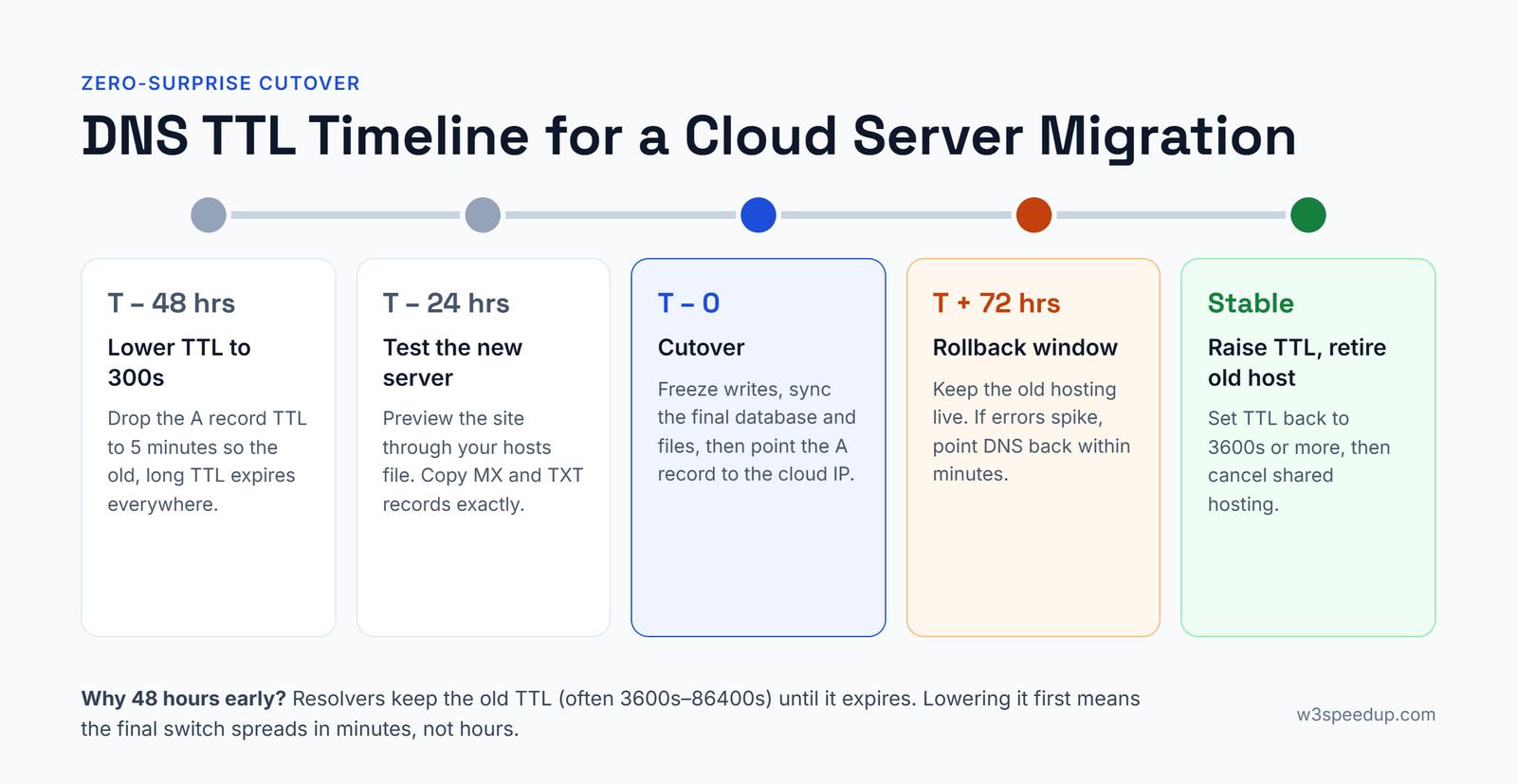
Lower your DNS TTL to 300 seconds 24–48 hours before the cutover, so the switch spreads in minutes.
Step 5. Perform Final Migration
Choose a low-traffic period for the final cutover. Put the application into maintenance mode if needed. Then:
-
Stop new writes to the old application.
-
Take a final database backup.
-
Transfer the latest database changes.
-
Sync new or changed files.
-
Run final checks on the cloud server.
-
Update the DNS record and check DNS propagation status.
-
Confirm that the new server receives traffic.
-
Monitor logs and application performance.
Keep the old hosting environment available during the transition. This gives you a rollback option if something goes wrong.
Step 6. Monitor and Optimize After Migration
The migration does not end when DNS changes. Watch the new environment closely for the first few days.
Track important elements like:
-
CPU and memory usage
-
Disk usage
-
Network traffic
-
Application response time
-
HTTP errors
Also review your cloud costs. A cloud server can become expensive if you choose oversized resources or leave unused resources running.
Conclusion
A cloud server is also an ideal upgrade from a shared hosting environment. Your website becomes faster, more secure, and scalable, plus you have greater flexibility over your resources. Using the advice we’ve provided in this guide, you can smoothly migrate to the cloud and avoid common issues like data loss and downtime.
FAQs
Q1. Will my website go down during the migration?
Downtime can be close to zero if you plan it. Build and test the cloud server while the old site stays live. Lower your DNS TTL in advance, and switch during low traffic. Keep both servers running until DNS fully updates, so every visitor reaches a working site.
Q2. How long does it take to migrate from shared hosting to a cloud server?
A small website usually takes a few hours to one day, plus time for DNS to update. Larger sites with big databases or custom software can take several days. Most of the time goes into setting up the server and testing, not the actual file transfer.
Q3. What happens to my email when I leave shared hosting?
Shared plans often include email, but a cloud server does not set it up for you. Before you switch, decide whether to keep email with your old host or move it to a provider like Google Workspace or Microsoft 365. Then copy your MX records exactly so mail keeps arriving.
Q4. Does moving to a cloud server affect SEO?
A correct migration does not hurt SEO, and faster load times can help it. Keep the same URLs, domain and SSL certificate, and check that no pages return errors after the switch. Problems only appear when URLs change without redirects or the site goes offline for a long time.